For viewers who demand maximum stability—especially when streaming 4K sports events or high-bitrate movies—we strongly recommend using a wired Ethernet connection. Below is a practical setup guide along with solutions to common connectivity issues.
1. Wired Ethernet Connection (Ideal for 4K & Live Streams)
1.1 Step-by-Step Setup
1. Make the Physical Connection
Use an Ethernet cable rated Cat5e or higher.
Plug one end firmly into the “Gigabit Ethernet Port” on your WE2USAT host—this port supports speeds up to 1000Mbps.
Connect the other end to any available “LAN” port on your router.
A secure connection is confirmed when the “Ethernet Indicator Light” on the host glows or flashes green.
2. Configure System Settings
Go to [Settings] → [Network & Internet] → [Ethernet].
The system will automatically detect the wired connection and display “Connected” once established.
3. Turn Off Wi-Fi to Avoid Interference
If Wi-Fi was previously enabled, visit your [Wi-Fi settings] and select “Turn Off.”
This prevents the system from switching between connections, eliminating potential lag or stutter.
1.2 Troubleshooting Common Ethernet Issues
Symptom: “Disconnected” status, no indicator light
Check that both ends of the Ethernet cable are fully inserted. Unplug and reconnect them to ensure a secure fit.
Try a different Ethernet cable to rule out cable failure.
Test another LAN port on your router in case the original port is faulty.
Symptom: Connected but slow speeds
Confirm you’re using at least a Cat5e cable. Older Cat5 cables may cap speeds at 100Mbps.
Access your router settings and enable “Quality of Service (QoS),” then assign “High Priority” to your WE2USAT device to prioritize bandwidth.
Connect a computer directly to the same cable to test speed. If speeds improve on the computer, restart your WE2USAT host via the power menu.
Symptom: Wi-Fi works, Ethernet does not
In [Ethernet settings], ensure “IP Settings” is set to “DHCP” so the device can obtain an IP address automatically.
Inspect the Ethernet port on the host for dust or damage. Gently clean with a dry cotton swab if needed.
Check for system updates under [Settings] → [System Update], as outdated software can affect Ethernet performance.
2. Last Resort: The 3-Step Reset Method
If the issue persists after trying the steps above, proceed with the following reset process:
Reset Network Settings
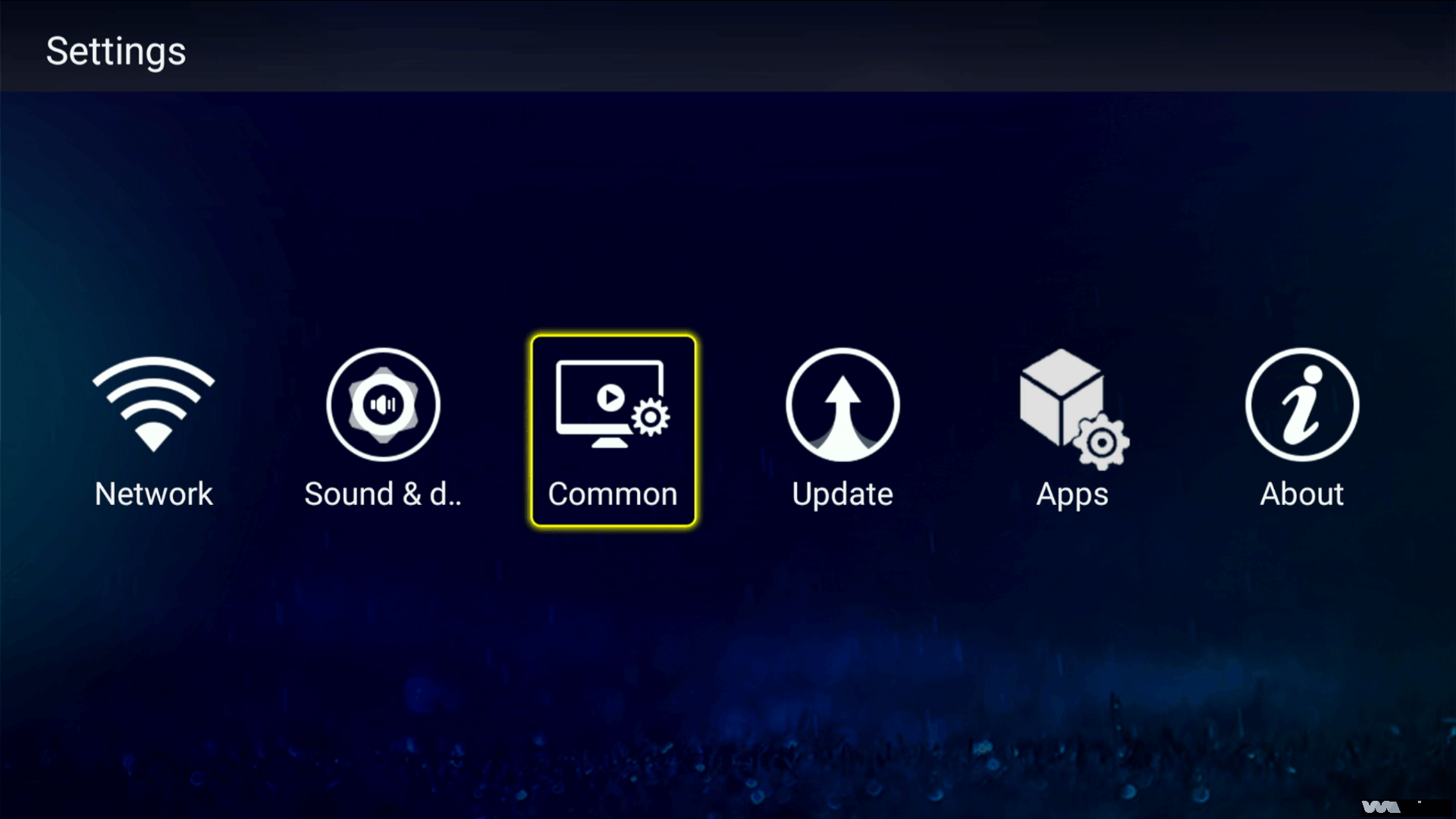
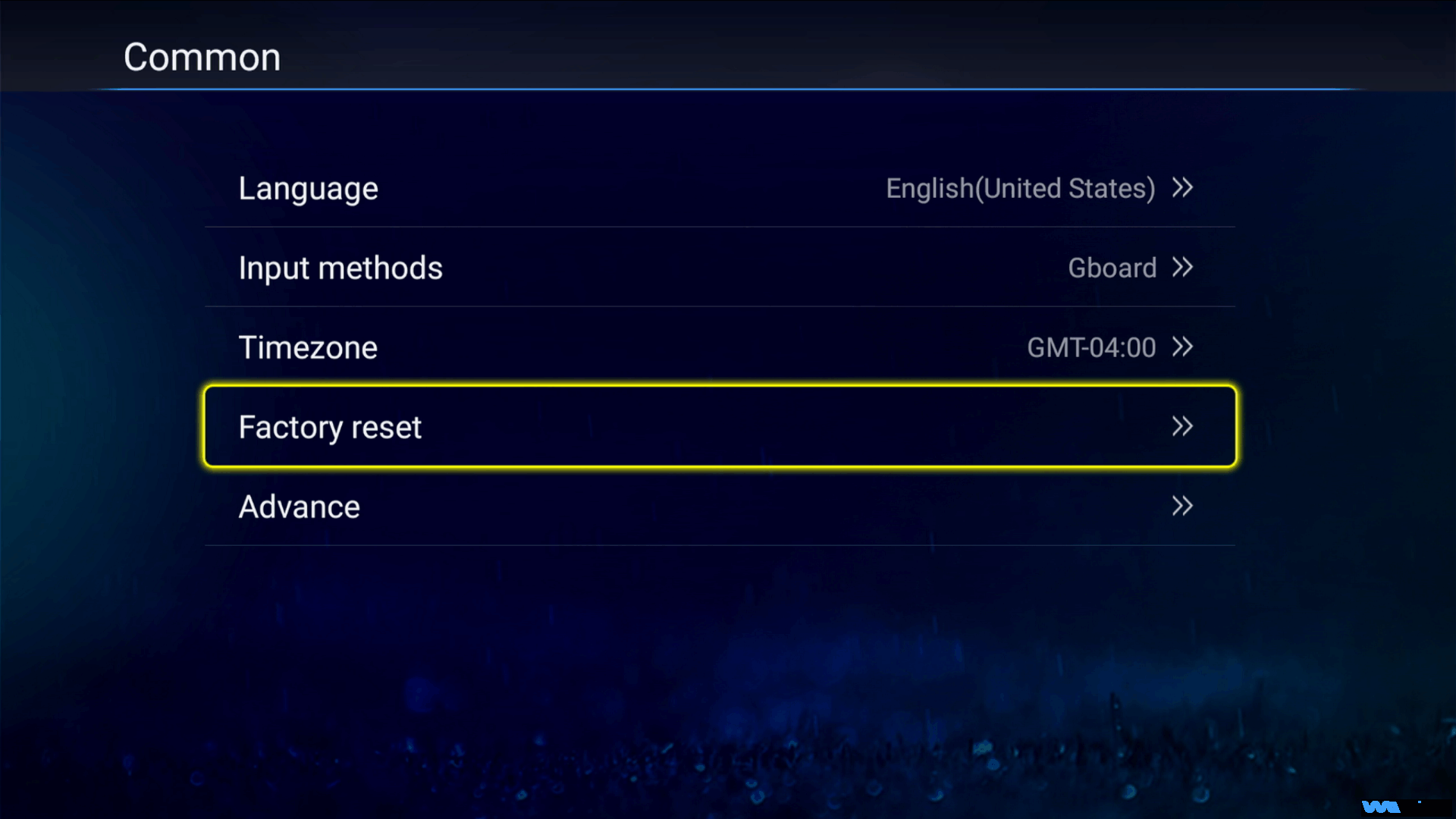
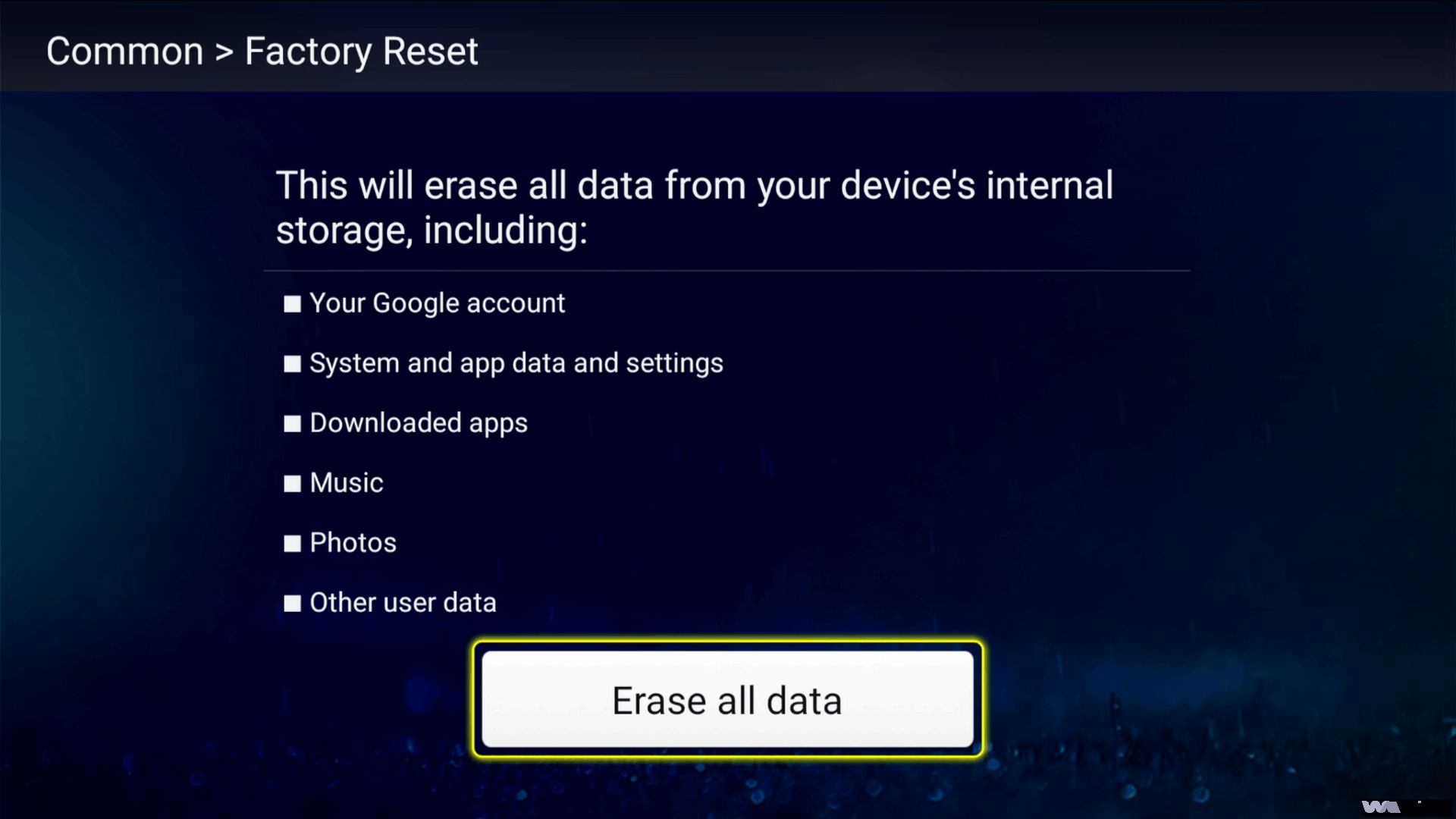
Navigate to [Settings] → [System] → [Factory Reset] → [Erase All Data].
This clears all previous network configurations. You can then reconfigure your connection from scratch.
Re-test Your Connection
After resetting, set up Ethernet again and check performance.
Contact Support if Needed
If problems continue, reach out to our technical support team with details about the steps you’ve tried.
2. Cross-Testing: Connect another device (like a computer or another TV box) to the same network using the same method (cable or WiFi). If the problem persists on other devices, the issue is likely with your home network, and you should contact your Internet Service Provider. If only the WE2USAT device has the issue, proceed to the next step.
3. Official Support: Record the details of the problem (e.g., “Ethernet connection drops after 5 minutes”) and your device’s MAC address (found in [Settings] → [About Device]). Contact the WE2USAT technical team via the “Live Chat” on our official website or by emailing support@we2usat.com. Our team will provide a customized solution within 24 hours.
3. Enjoy Flawless Streaming
WE2USAT brings you a vast library of content—from early-morning Premier League matches and the latest Korean dramas to on-demand classic movies. A stable network and crystal-clear picture quality transform your living room into a personal home theater. Should you encounter any new issues, feel free to check our official “Help Center” or contact customer support for real-time assistance.