Easy WE2USAT Tutorial: Adjusting Subtitle Size
Finding subtitles too small or hard to read while enjoying your favorite shows? With WE2USAT, customizing the text size is a simple process. Just follow these quick steps to adjust the subtitle size to your comfort.
Here’s how to do it:
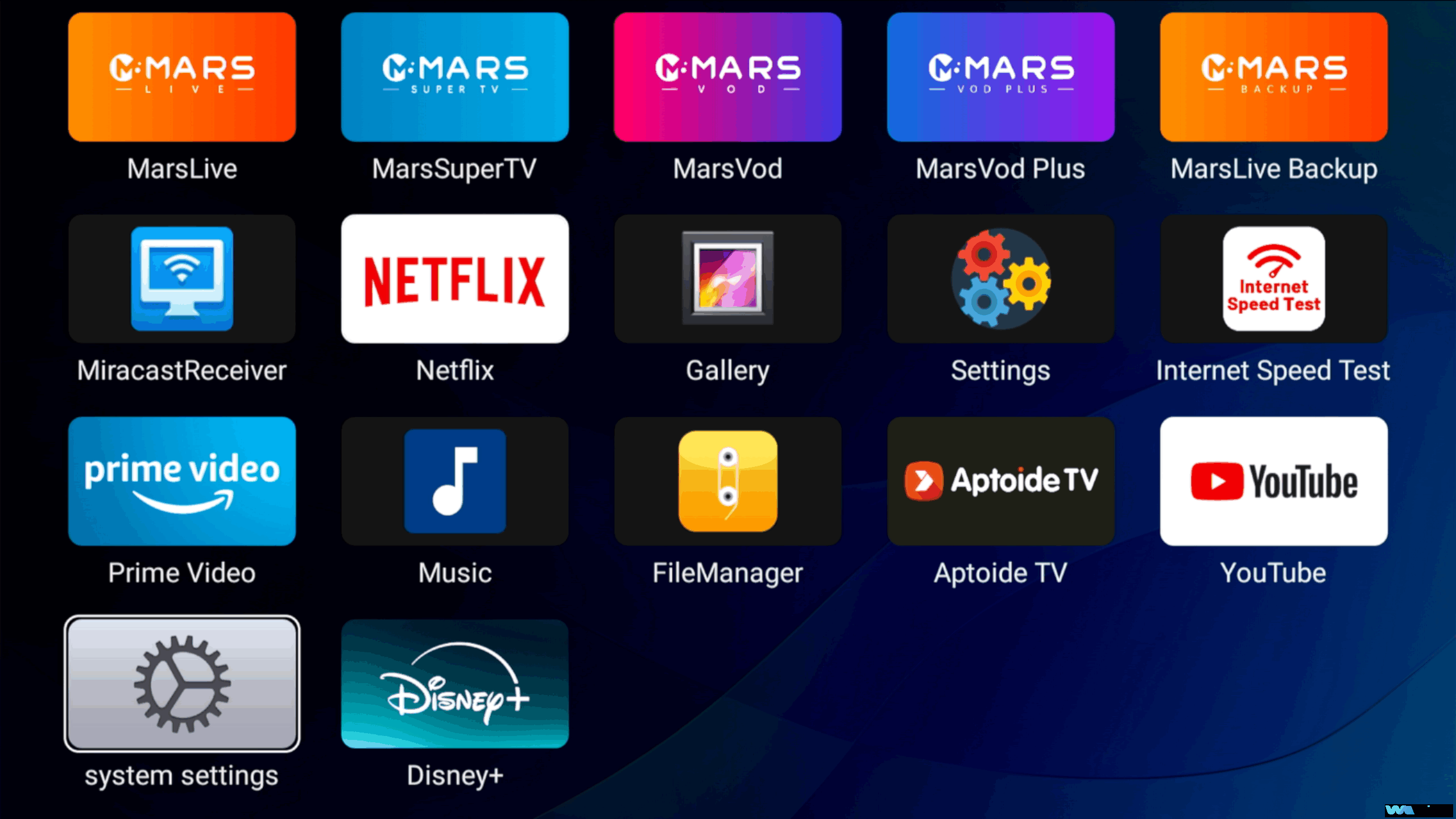
1. From the home screen, navigate to and select 【System Settings】. Then, proceed by clicking through the following options in order: 【Device Preferences】 -【Display & Sound】 -【Text Scaling】.
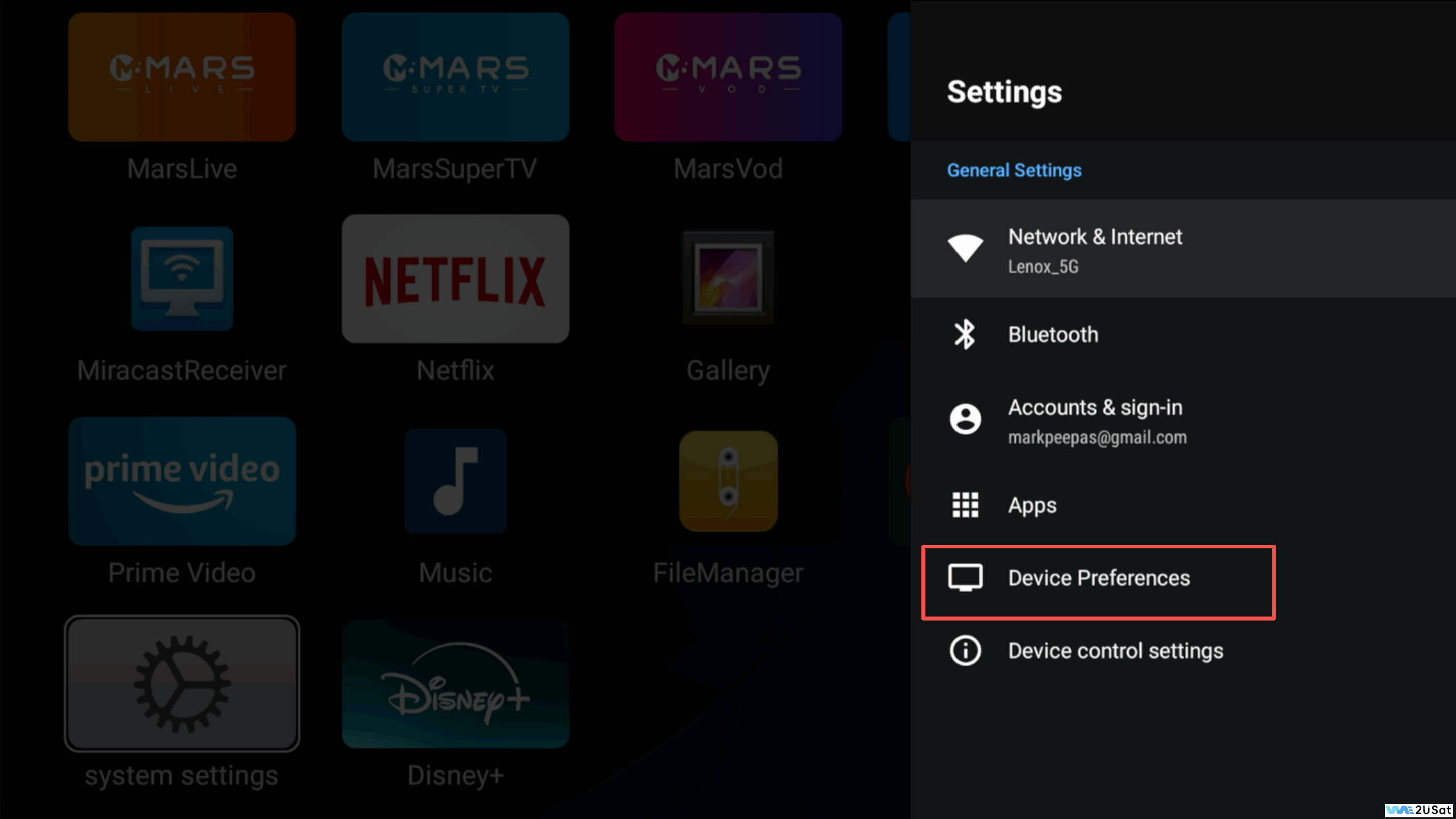
select【Device Preferences】then【Display & Sound】
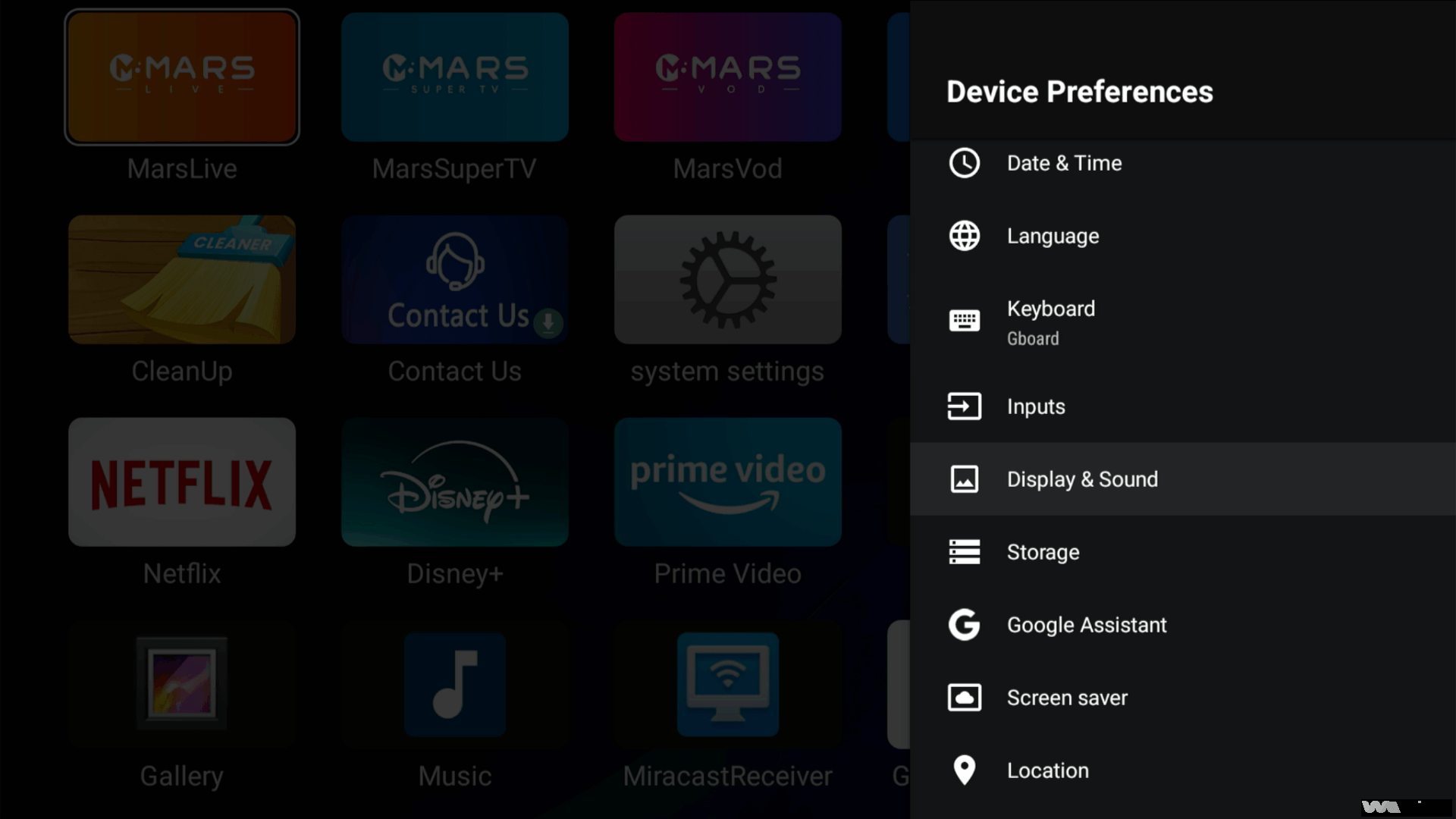
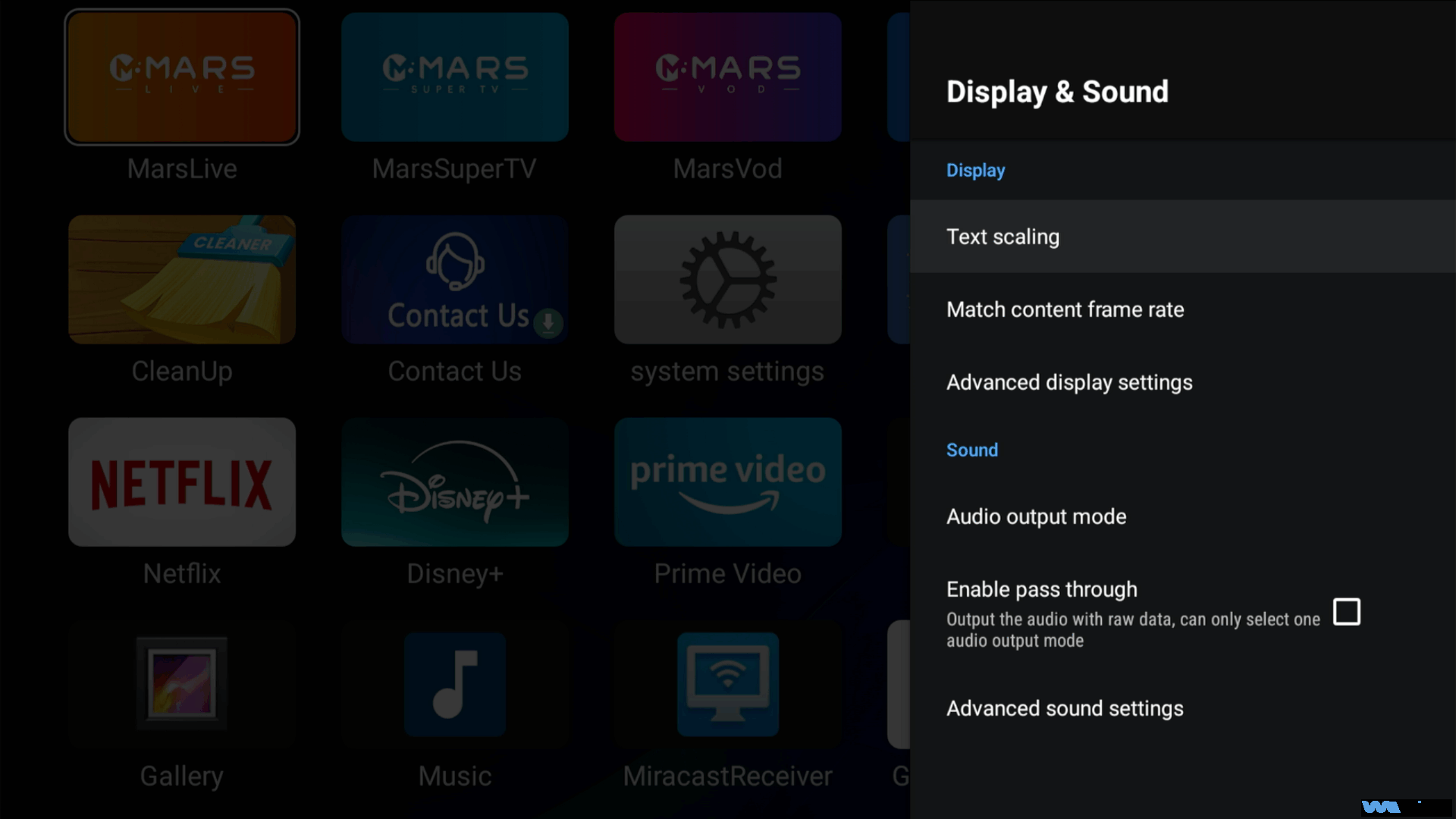
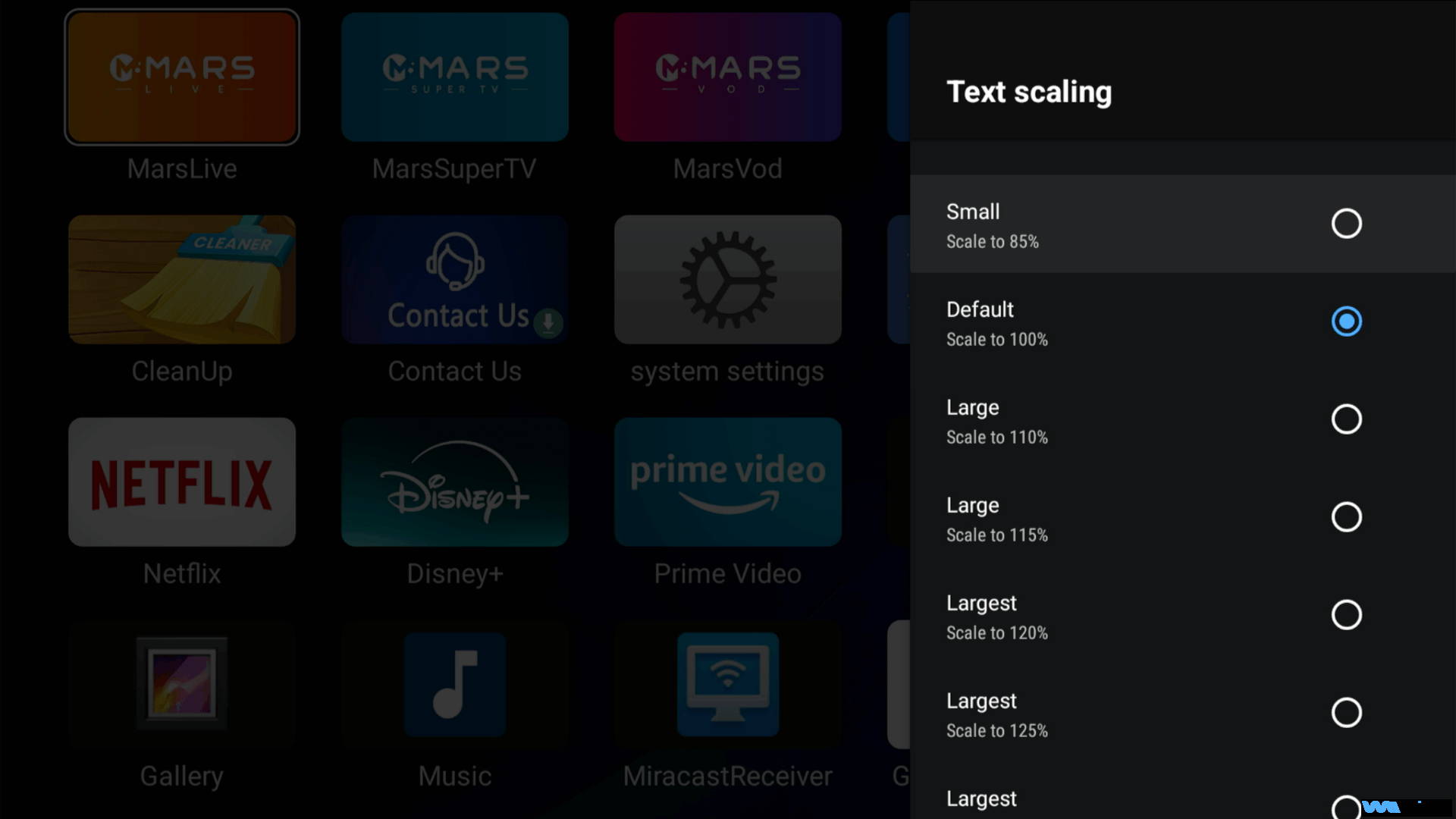
laster select【Text Scaling】.
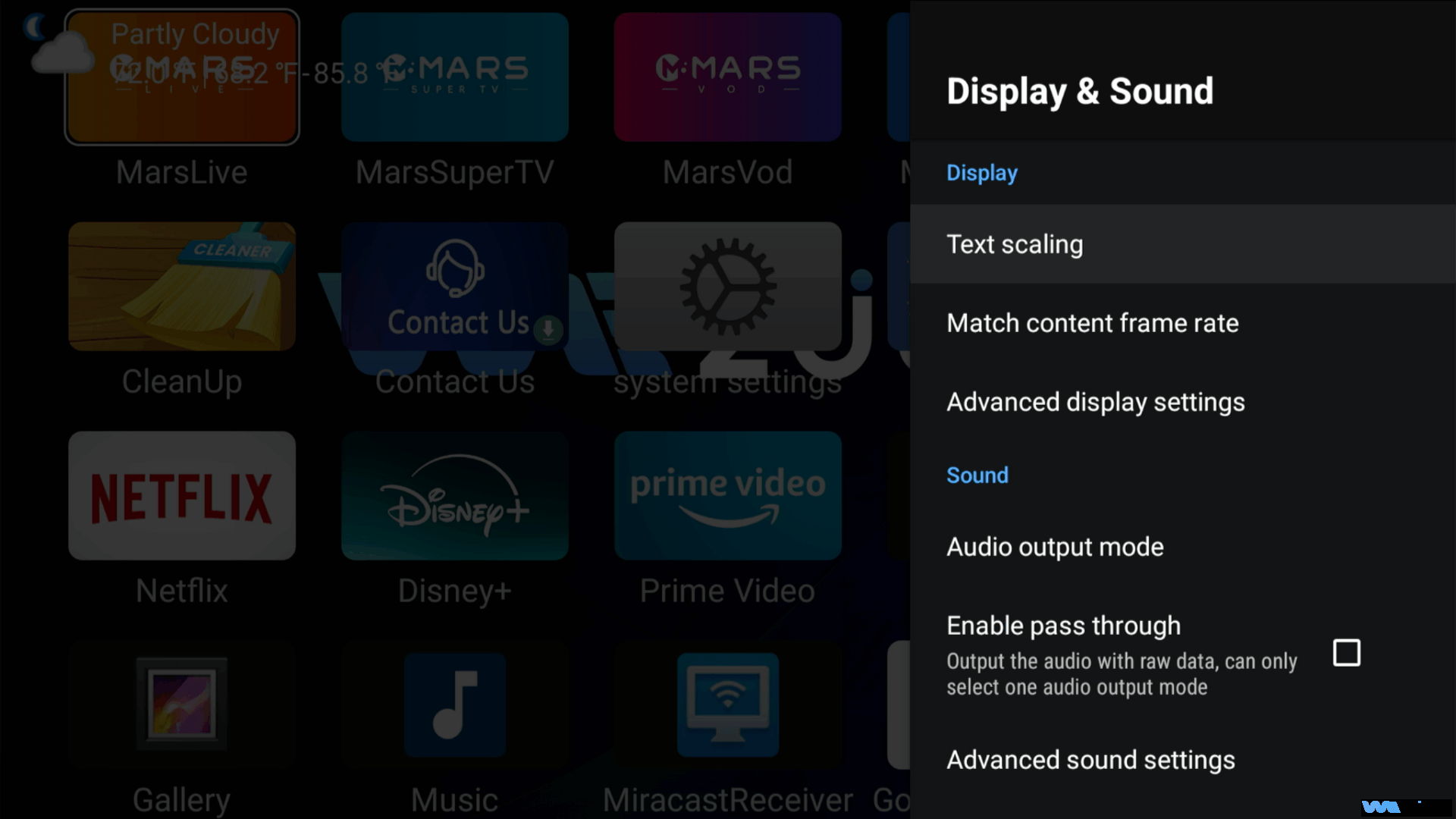
2. You will now enter the font size adjustment screen. This interface typically provides a preview so you can see the changes in real-time.
3. Browse through the available size options and select the one that best suits your viewing preference. Once selected, the changes will be applied automatically.
That’s all it takes! In just three straightforward steps, you can enjoy your movies and shows with perfectly sized subtitles.
If the screen appears uncoordinated after adjusting the font size, please refer to "Screen Size Adaptation Adjustment".
Helpful Tip:
Don’t be afraid to test a few different sizes to find your perfect fit. The right size can significantly reduce eye strain and improve your overall viewing experience.We hope this guide enhances your WE2USAT experience. If you have any other questions, feel free to reach out for further assistance. Happy watching