
Setup Guides
WE2USAT Setup Guides – K3 Pro+ & P6 Mini
Welcome to the WE2USAT Setup Guides.
Find step-by-step instructions for setting up your WE2USAT K3 Pro+ and P6 Mini TV boxes, connecting to Wi-Fi, pairing your Bluetooth remote control, and troubleshooting common device issues.
Whether you're setting up a new device or helping customers resolve a technical problem, this guide will help you get started.
1. Getting Started With Your WE2USAT TV Box
Before installing your WE2USAT TV box, check the package contents and identify the correct connection method for your model.
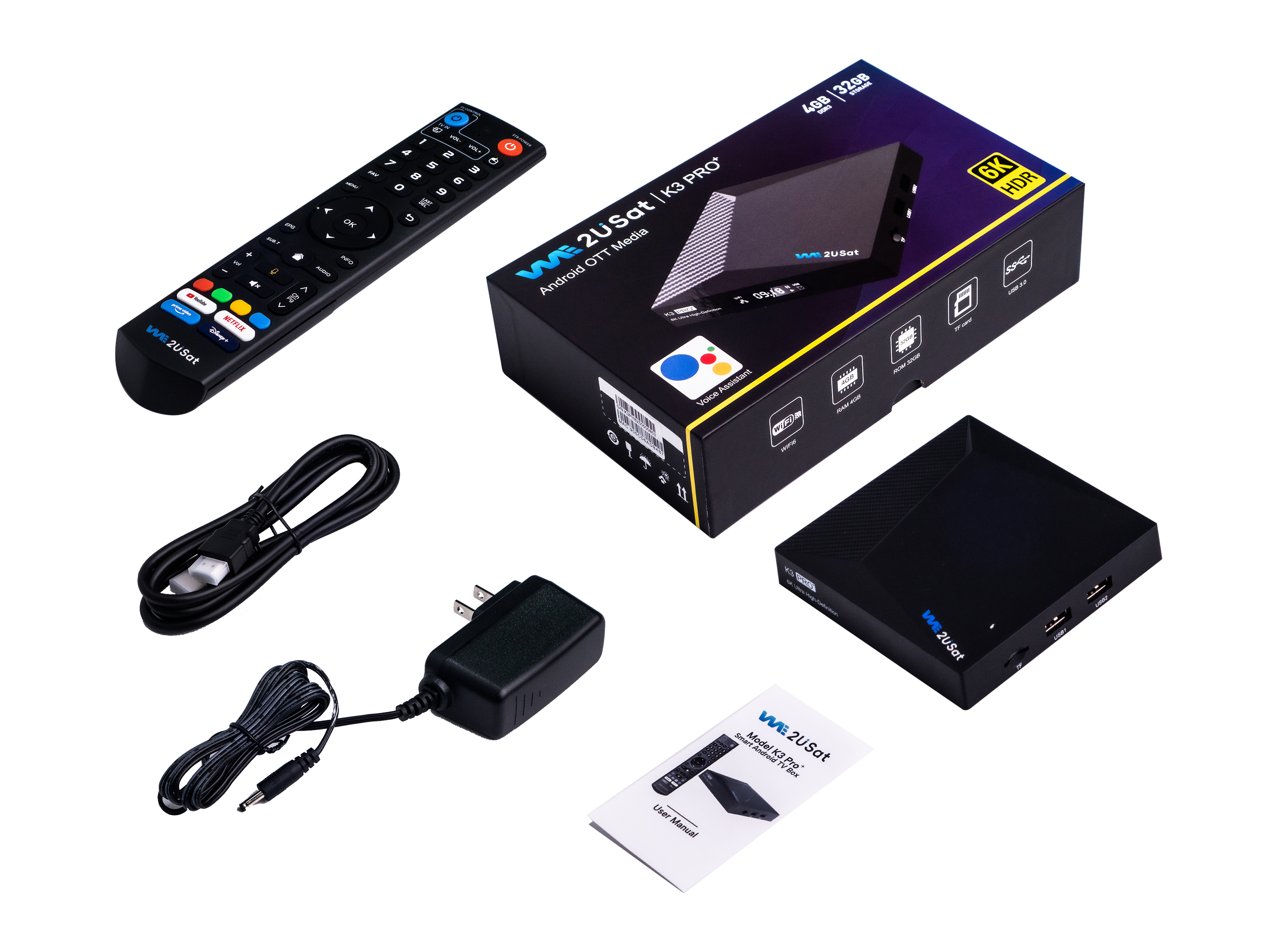
What's Included With the WE2USAT K3 Pro+?
-
1 × WE2USAT K3 Pro+ TV Box
-
1 × Remote Control
-
1 × HDMI 2.1 Cable
-
1 × Power Cord
-
1 × Instruction Manual
-
1 × Packaging Box
The K3 Pro+ uses a separate HDMI cable to connect to your television.
What's Included With the WE2USAT P6 Mini?
-
1 × WE2USAT P6 Mini TV Box
-
1 × Remote Control
-
1 × Power Adapter
-
1 × Power Cord
-
1 × Instruction Manual
The P6 Mini features a built-in HDMI connector, so a separate HDMI cable is not required for direct connection to a compatible television.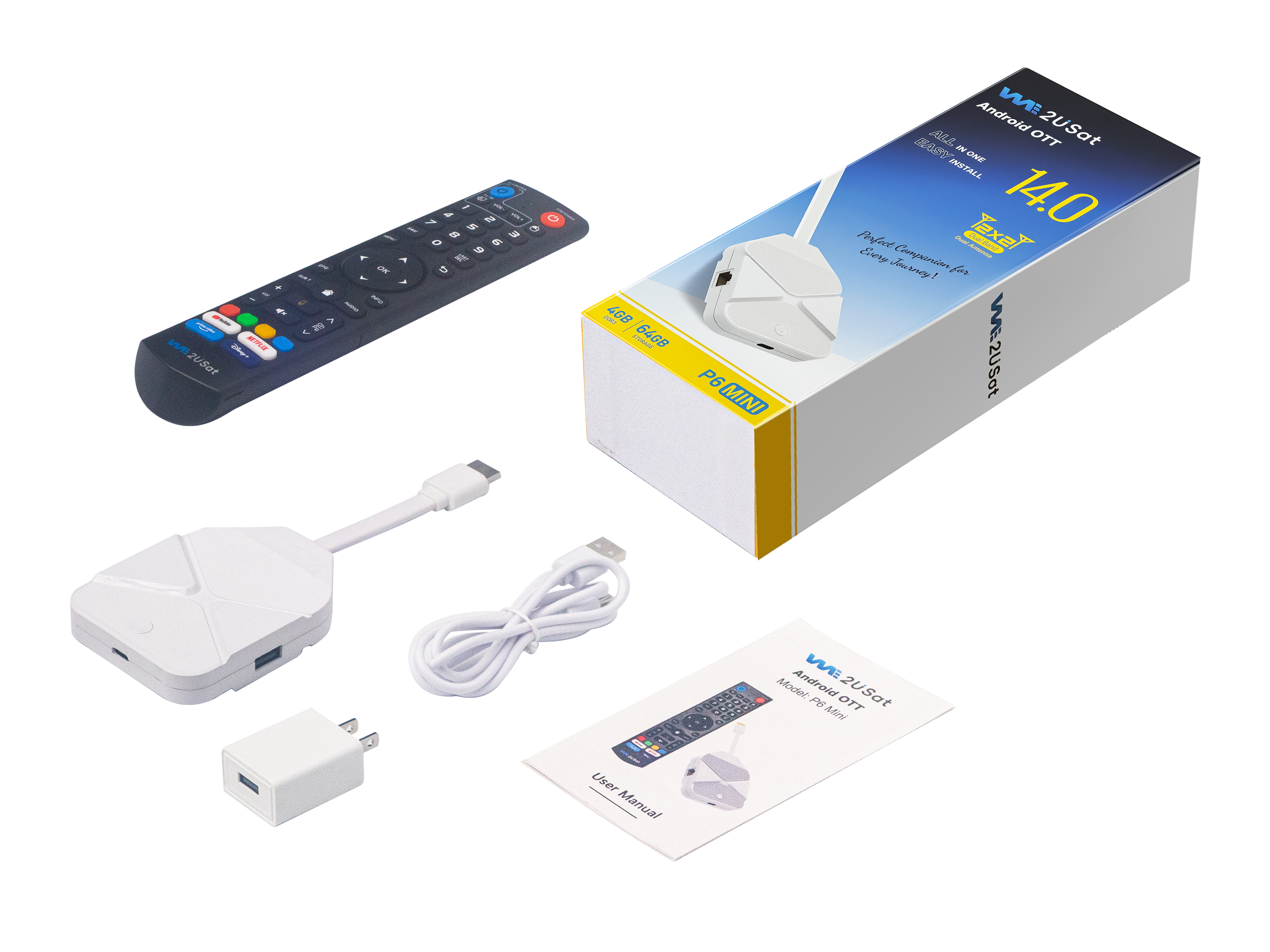
2. WE2USAT K3 Pro+ Setup Guide
Follow these steps to connect your WE2USAT K3 Pro+ TV box to a compatible television and complete the initial setup.
How to Connect WE2USAT K3 Pro+ to Your TV
Step 1: Connect the HDMI Cable
Connect one end of the included HDMI 2.1 cable to the HDMI output on your WE2USAT K3 Pro+. Connect the other end to an available HDMI input on your television.
Step 2: Connect the Power Supply
Connect the power cord and use the appropriate power source according to the included instruction manual.
Step 3: Select the Correct HDMI Input
Turn on your television and select the HDMI input connected to your K3 Pro+.
Step 4: Complete the Initial Setup
Wait for the device to start and follow the on-screen instructions.
Step 5: Connect to Wi-Fi
Open the network settings, select your wireless network, and enter your Wi-Fi password.
Once the initial setup is complete, you can configure the device and use compatible applications.
CTA: Explore WE2USAT K3 Pro+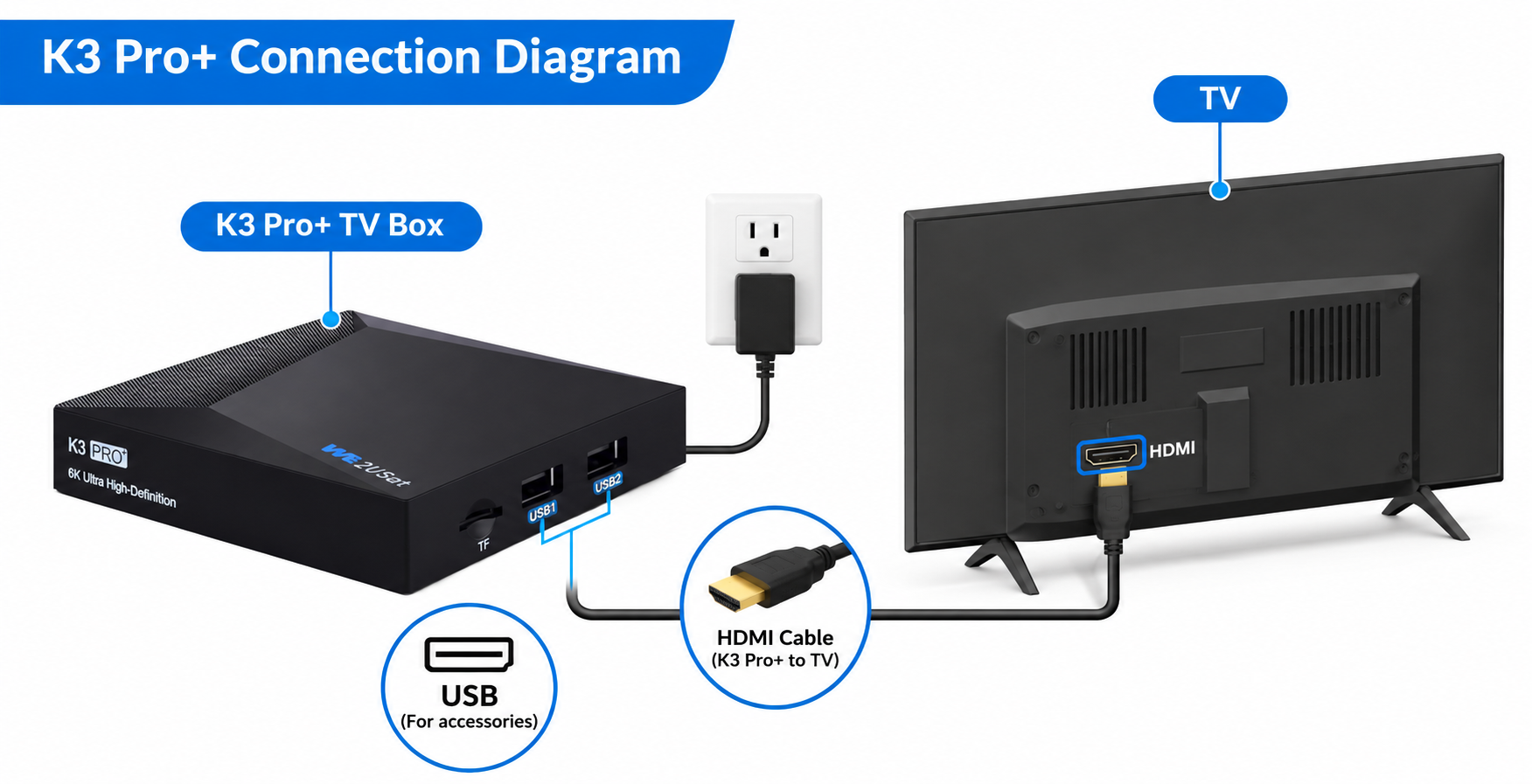
3. WE2USAT P6 Mini Setup Guide
The WE2USAT P6 Mini features a compact design and a built-in HDMI connector for direct connection to a compatible television.
How to Connect WE2USAT P6 Mini to Your TV
Step 1: Connect the Built-In HDMI Connector
Locate an available HDMI input on your television and carefully insert the P6 Mini's built-in HDMI connector.
Do not force the connector into the HDMI port.
Step 2: Connect the Power Supply
Connect the included power cord and power adapter according to the instruction manual.
Step 3: Select the HDMI Input
Turn on your television and select the HDMI input connected to your P6 Mini.
Step 4: Complete the Initial Setup
Wait for the device to start and follow the instructions displayed on the screen.
Step 5: Connect to Wi-Fi
Open the network settings, choose your wireless network, and enter the password.
Your P6 Mini is now ready for further configuration and use with compatible applications.
Does the WE2USAT P6 Mini Need an HDMI Cable?
No. The WE2USAT P6 Mini has a built-in HDMI connector and does not require a separate HDMI cable for direct connection to a compatible television.
CTA: Explore WE2USAT P6 Mini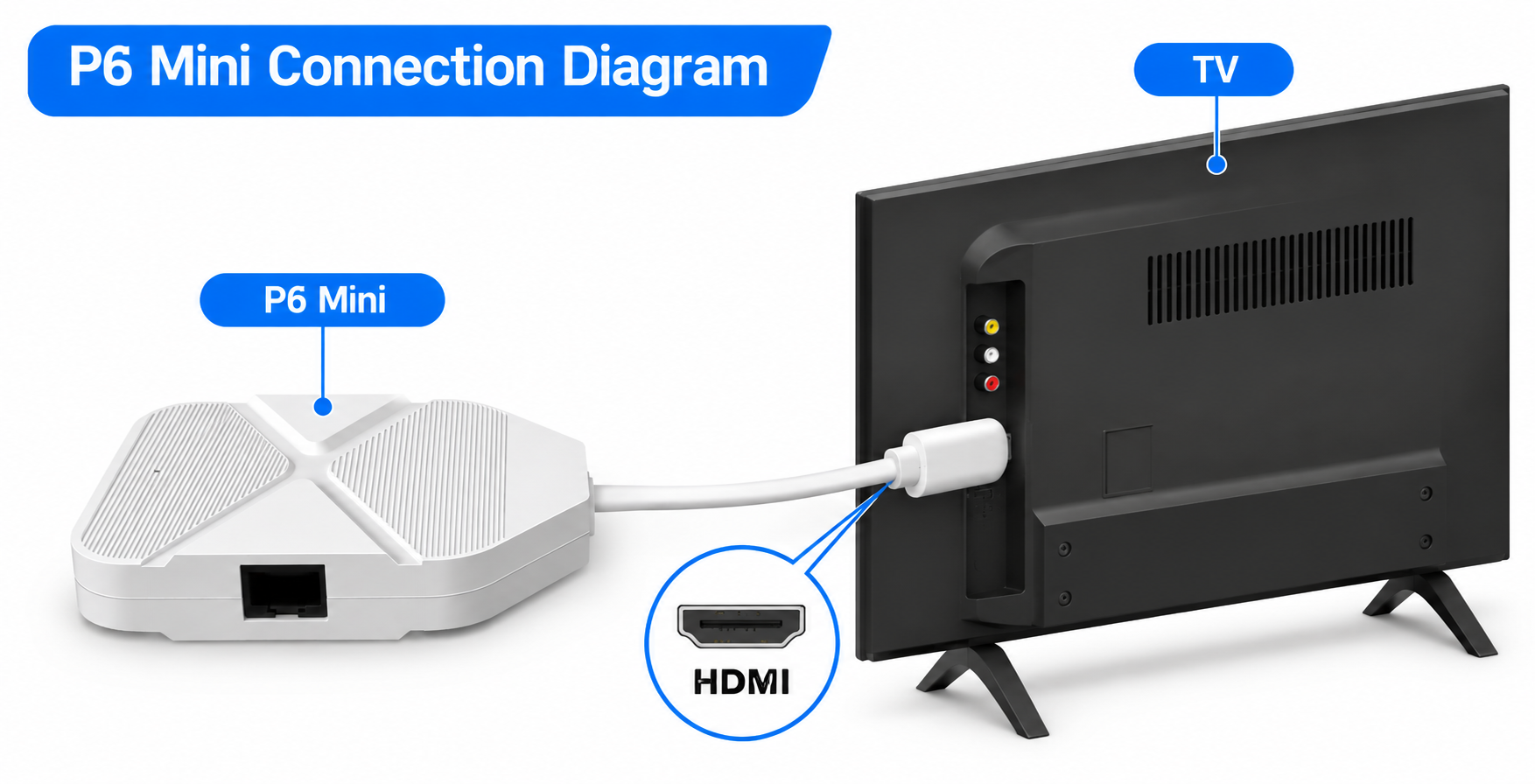
4. How to Connect WE2USAT TV Box to Wi-Fi
Both the WE2USAT K3 Pro+ and P6 Mini support wireless network connectivity.
WE2USAT Wi-Fi Setup Instructions
-
Turn on your WE2USAT TV box.
-
Open the Settings menu.
-
Navigate to Network or Wi-Fi settings.
-
Select an available wireless network.
-
Enter your Wi-Fi password.
-
Wait for the connection confirmation.
Both models support dual-band 2.4GHz and 5GHz Wi-Fi connectivity.
Menu names and available settings may vary depending on the software version.
WE2USAT Wi-Fi Not Connecting?
If your WE2USAT TV box cannot connect to Wi-Fi:
-
Make sure your wireless router is working.
-
Check that you entered the correct password.
-
Restart your router and TV box.
-
Move the device closer to your router.
-
Try another supported wireless network or frequency band.
A stable internet connection is recommended for software updates and supported online applications.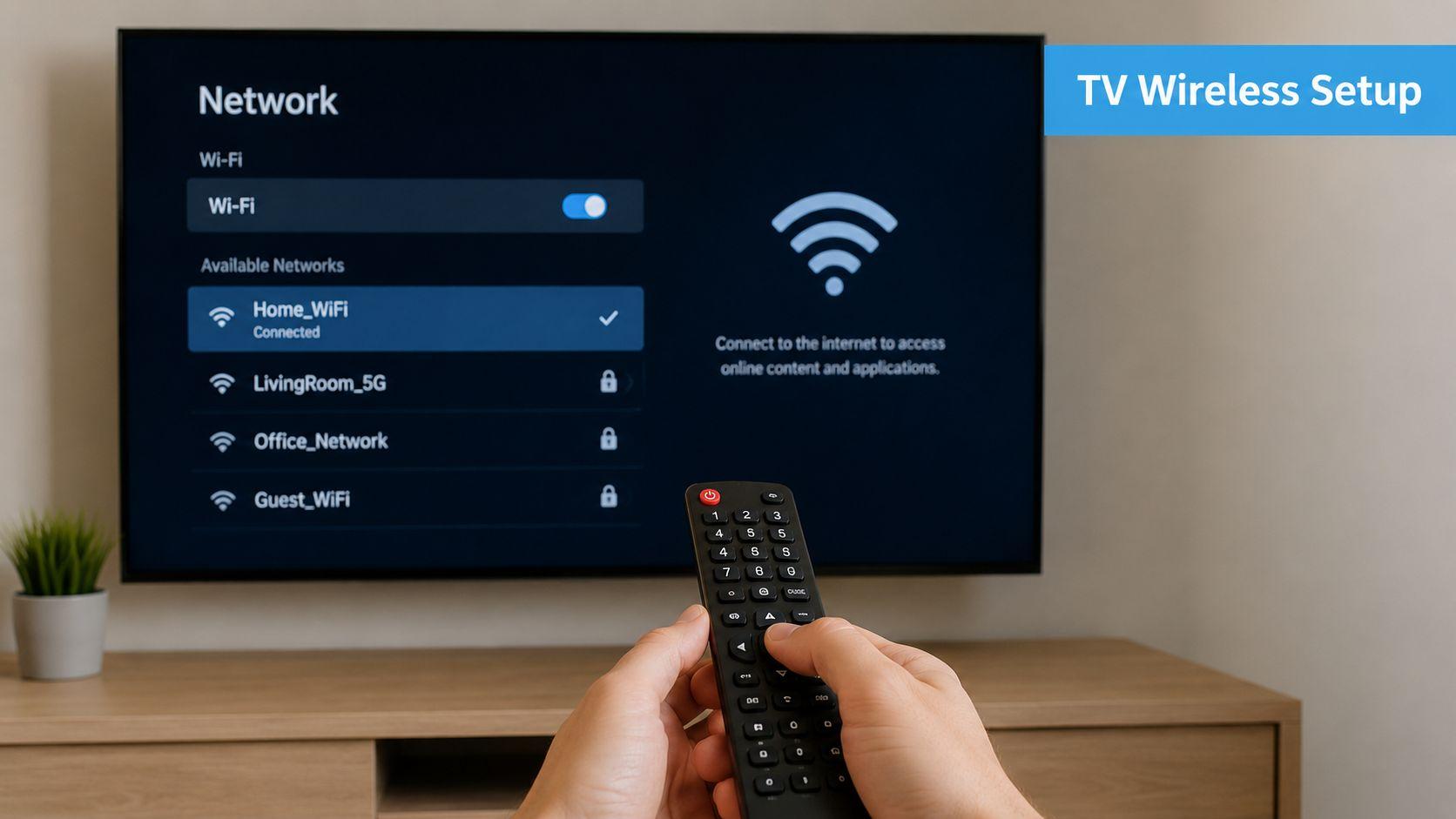
5. WE2USAT Remote Control Setup & Bluetooth Pairing
The WE2USAT K3 Pro+ and P6 Mini include Bluetooth voice remote controls for navigating the device interface and using compatible voice features.
How to Pair Your WE2USAT Bluetooth Remote
Step 1: Insert the Batteries
Open the battery compartment and insert two AAA batteries according to the positive (+) and negative (−) markings.
Step 2: Turn On Your WE2USAT TV Box
Connect the device to your television and power supply. Wait for the startup screen to appear.
Step 3: Start Bluetooth Pairing
When the remote pairing screen appears, keep the remote close to the TV box.
For remote versions that use the OK + Volume Down pairing combination, press and hold the OK and Volume Down (VOL−) buttons simultaneously for approximately 3–5 seconds, until the remote indicator flashes.
If your remote has different pairing instructions, follow the included user manual.
Step 4: Complete the Bluetooth Connection
Wait for the on-screen pairing confirmation.
If the connection is unsuccessful, repeat the pairing procedure according to the device instructions.
Step 5: Test Your Remote Control
Use the directional buttons and OK button to check whether the remote responds correctly.
You can also test the voice button with a supported voice-control function.
WE2USAT Remote Control Not Working? Troubleshooting Guide
If your WE2USAT K3 Pro+ or P6 Mini remote control is not responding, try the following steps.
Step 1: Replace the Batteries
Replace the remote batteries with a fresh set of AAA batteries, even if the current batteries appear to be working.
Step 2: Restart Your WE2USAT TV Box
Unplug the TV box from its power source, wait approximately 30 seconds, and reconnect the power.
Allow the device to restart completely.
Step 3: Re-Pair the Bluetooth Remote
Try pairing your remote again using the pairing instructions for your device and remote version.
Step 4: Check for Signal Interference
Remove any obstacles that may interfere with the remote signal, where applicable.
Move nearby electronic devices that could cause wireless interference.
Step 5: Test Another Input Device
If you have a compatible mini wireless keyboard or another previously paired remote, try using it to navigate the TV box.
If the device responds to another input device, the problem may be related to the original remote or its connection.
How to Factory Reset Your WE2USAT TV Box Without a Remote
If your WE2USAT remote still cannot connect after trying the troubleshooting steps above, you may be able to use a compatible wired USB mouse to perform a factory reset.
Important: A factory reset erases saved settings, installed applications, account information, and other locally stored data. Use this option only when necessary. It does not guarantee that a remote connection issue will be resolved.
operation sequence: Settings—>Device Prefferences—>About—>Factory reset
What If Only Certain Remote Buttons Are Not Working?
If only certain buttons are unresponsive, test them in different menus or supported applications.
Some buttons may perform different functions depending on the device settings or application.
If the issue continues, contact our support team with your device model and a description of the problem.
6. Common WE2USAT TV Box Troubleshooting
WE2USAT TV Box Shows No Signal
If your television displays a "No Signal" message:
-
Make sure the TV box is receiving power.
-
Check the HDMI connection.
-
Select the correct HDMI input on your television.
-
Restart the TV box.
-
Try another compatible HDMI input if available.
For the K3 Pro+, check the HDMI cable connection.
For the P6 Mini, make sure the built-in HDMI connector is securely connected.
WE2USAT TV Box Won't Turn On
If your device does not start:
-
Check the power connection.
-
Confirm that the power source is working.
-
Disconnect the power temporarily and reconnect it.
-
Inspect the power cord for visible damage.
If the device still does not turn on, contact our support team.
WE2USAT TV Box Keeps Disconnecting From Wi-Fi
If your device frequently loses its Wi-Fi connection:
-
Restart your router.
-
Check the wireless signal strength.
-
Move the device closer to the router.
-
Reconnect to your Wi-Fi network.
-
Try another supported Wi-Fi frequency band.
How to Check for WE2USAT Software Updates
Software updates may help improve device stability, compatibility, and performance.
To check for available updates:
-
Connect your WE2USAT TV box to the internet.
-
Open the device's Settings menu.
-
Locate the software update option, if available.
-
Follow the on-screen instructions for supported updates.
Menu names and update availability may vary depending on the model and software version.
Only install software or firmware from authorized sources.
7. Frequently Asked Questions About WE2USAT Setup
How do I set up my WE2USAT K3 Pro+ for the first time?
Connect the K3 Pro+ to your television using the included HDMI cable, connect the appropriate power supply, select the correct HDMI input, and follow the on-screen instructions.
Does the WE2USAT P6 Mini require a separate HDMI cable?
No. The P6 Mini features a built-in HDMI connector for direct connection to a compatible television.
How do I pair my WE2USAT Bluetooth remote?
Turn on your TV box and follow the on-screen pairing instructions. For compatible remote versions, hold OK and Volume Down simultaneously for approximately 3–5 seconds to start pairing.
Why is my WE2USAT remote not connecting?
Possible causes include weak batteries, Bluetooth pairing issues, wireless interference, or temporary device problems.
Try replacing the batteries, restarting the TV box, and pairing the remote again.
Can I factory reset my WE2USAT TV box without a remote?
If your device recognizes a compatible wired USB mouse, you may be able to access the factory reset option through the Settings menu.
A factory reset will erase saved settings and locally stored data.
How do I connect my WE2USAT TV box to Wi-Fi?
Open the network settings, select your wireless network, and enter the password.
What should I do if my WE2USAT TV box shows no signal?
Check the HDMI connection, confirm that the device is powered on, and select the correct HDMI input on your television.
Where can I get additional WE2USAT support?
Contact our support team for assistance with device setup, connectivity, remote control issues, and eligible hardware warranty questions.
CTA: Visit WE2USAT FAQs
8. Need Additional WE2USAT Product Support?
If you need help with your WE2USAT K3 Pro+ or P6 Mini, please contact our team.
For faster assistance, include your device model, a description of the issue, and any relevant error messages.
Email: info@we2usattv.com
WhatsApp: Ray (Sales Representative)
Phone / WhatsApp: +1 (346) 883-4128
Eligible products are covered by a one-year hardware warranty, subject to applicable warranty terms.
CTA: Contact Our Support Team
9. Explore WE2USAT Wholesale Opportunities
We welcome wholesale inquiries from U.S. retailers, local distributors, and online sellers interested in WE2USAT K3 Pro+ and P6 Mini TV boxes.
As an authorized WE2USAT distributor, we can assist with product information, quantity-based quotations, order arrangements, and hardware support inquiries.
Visit our Wholesale Program page to learn more about potential distribution partnerships.
CTA: Explore Our Wholesale Program